Command Palette
Search for a command to run...
Connect to your Shopify Store
This guide will walk you through the step-by-step process of installing the IntelliConvert chatbot, connecting it to your Shopify store, and enabling it within your store’s theme so it’s ready to assist your customers immediately.
Access IntelliConvert Dashboard
- Go to IntelliConvert
- Login or Create an account
Note: Your account must be approved before continue to next steps. Our team will review and approve newly created accounts.
Need help? Contact Support
Connect Shopify Store
- Ensure you are logged in to IntelliConvert
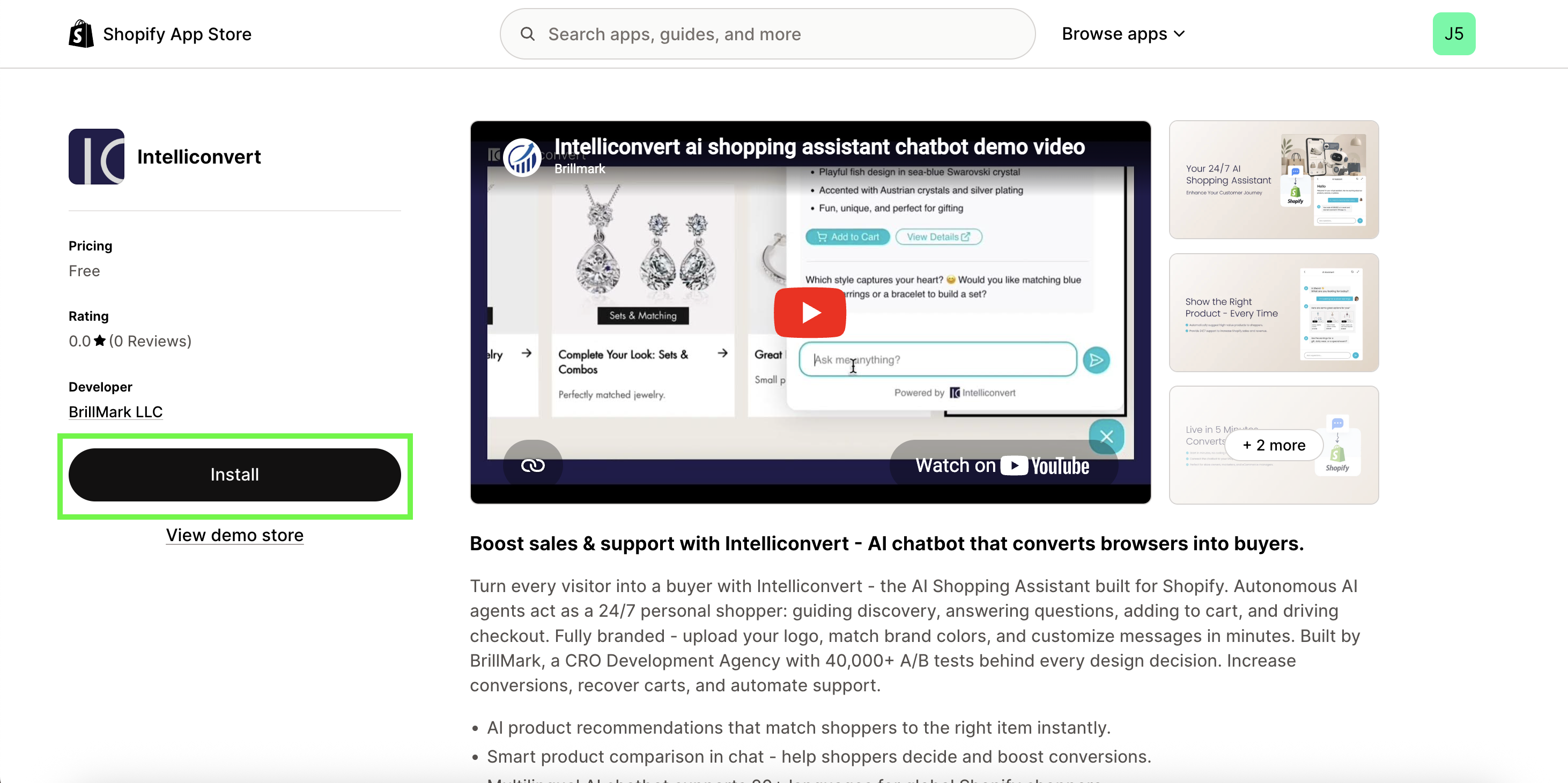
- You can install the IntelliConvert chatbot from the Shopify App Store directly or:
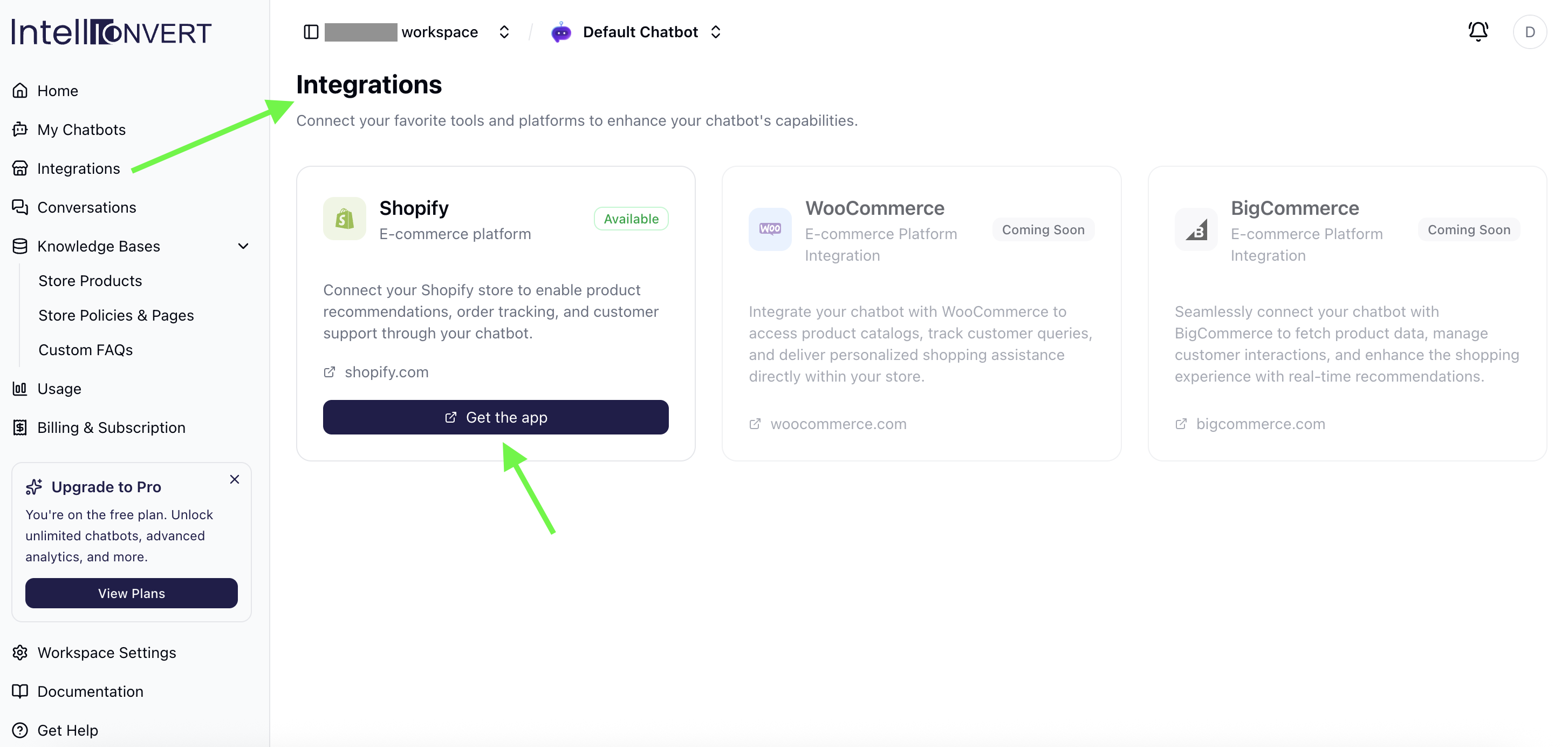
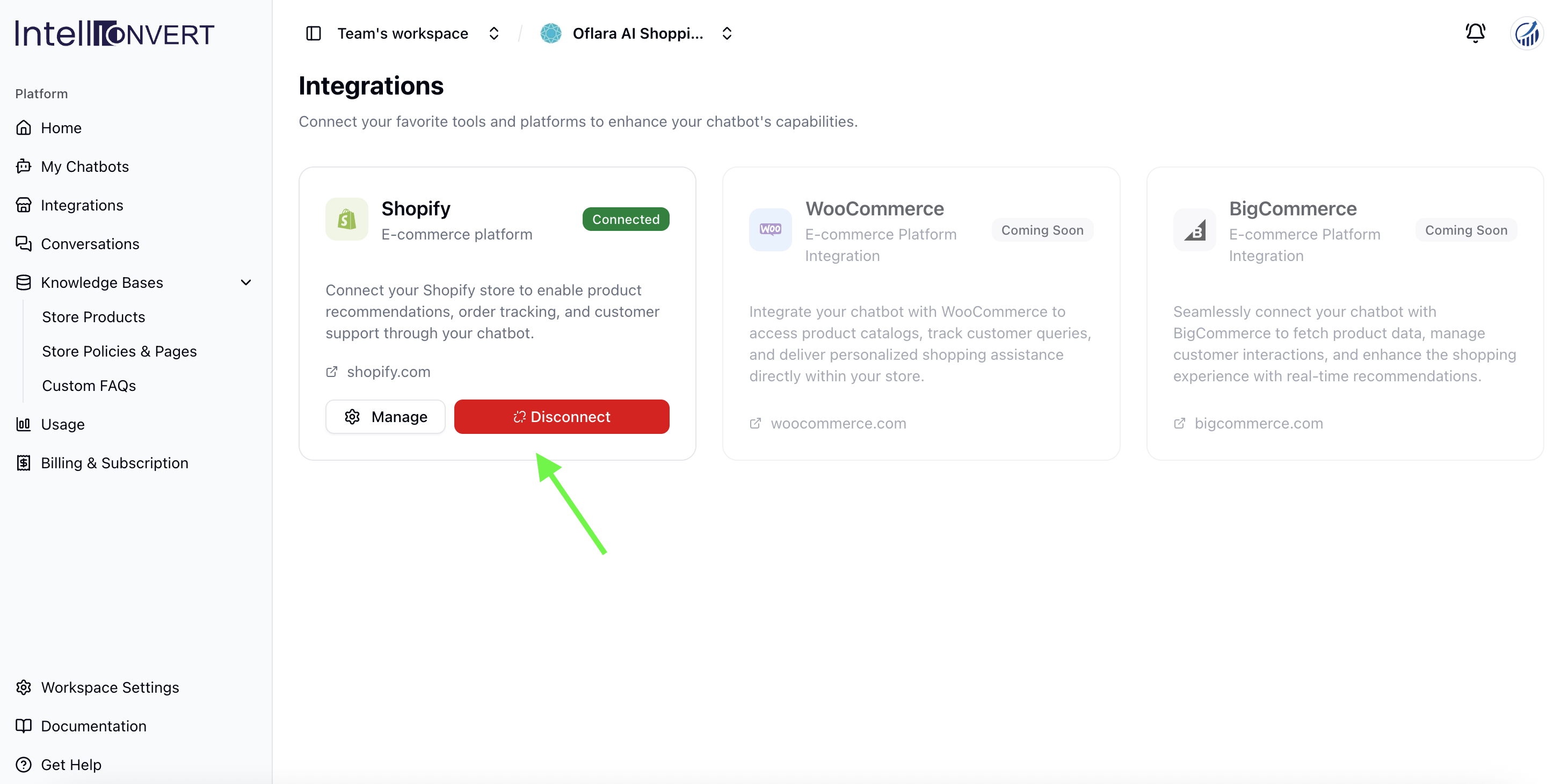
- Go to Integrations → Connect

- Enter your Shopify Store URL and click Connect Store

- Go to Integrations → Connect
Note: After installation, you’ll be redirected to the IntelliConvert Dashboard. Make sure you are logged in and your account is approved.
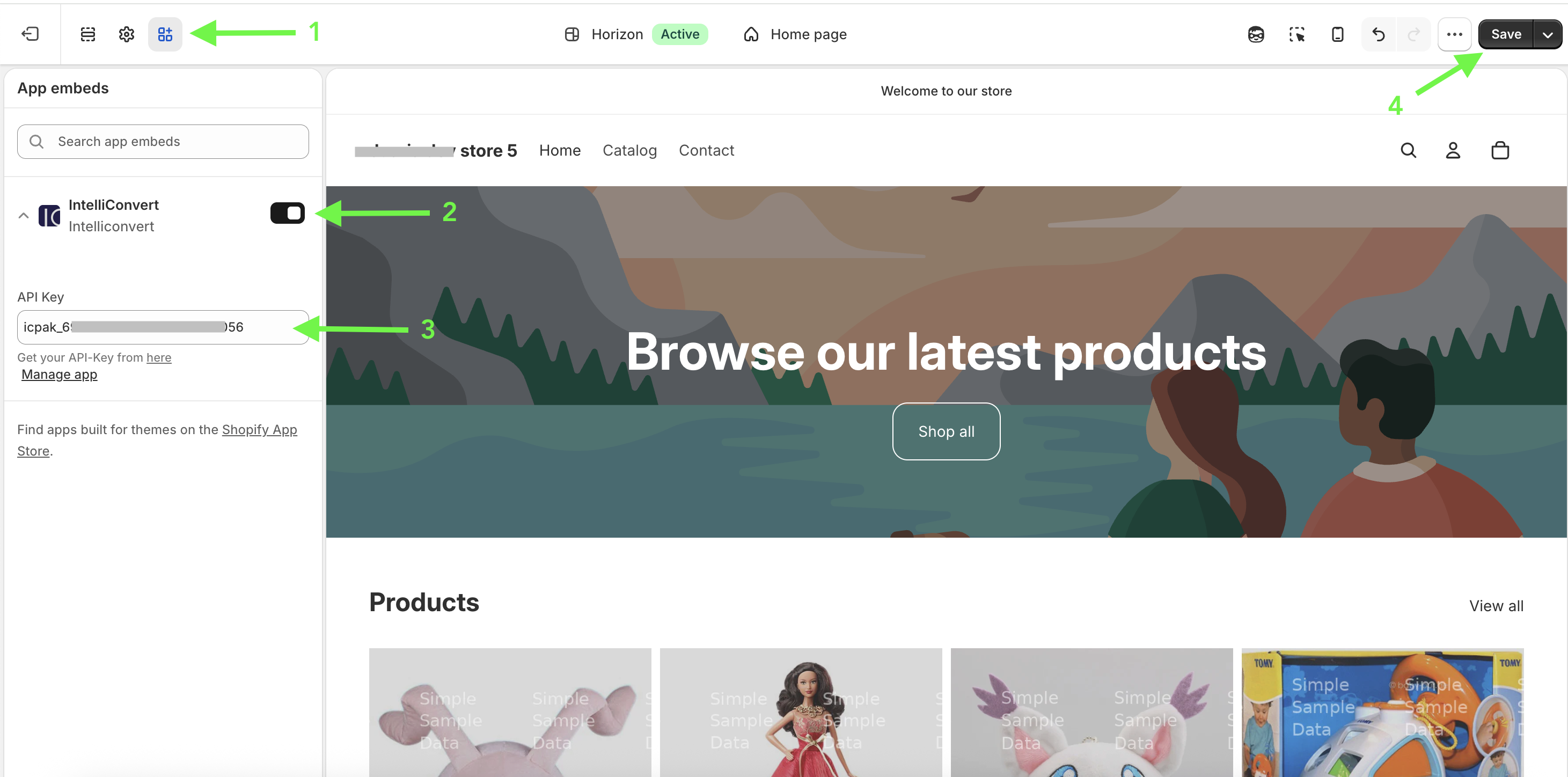
Enable the Chatbot Widget
- Open Shopify Theme Editor
- Go to App Embeds
- Find IntelliConvert
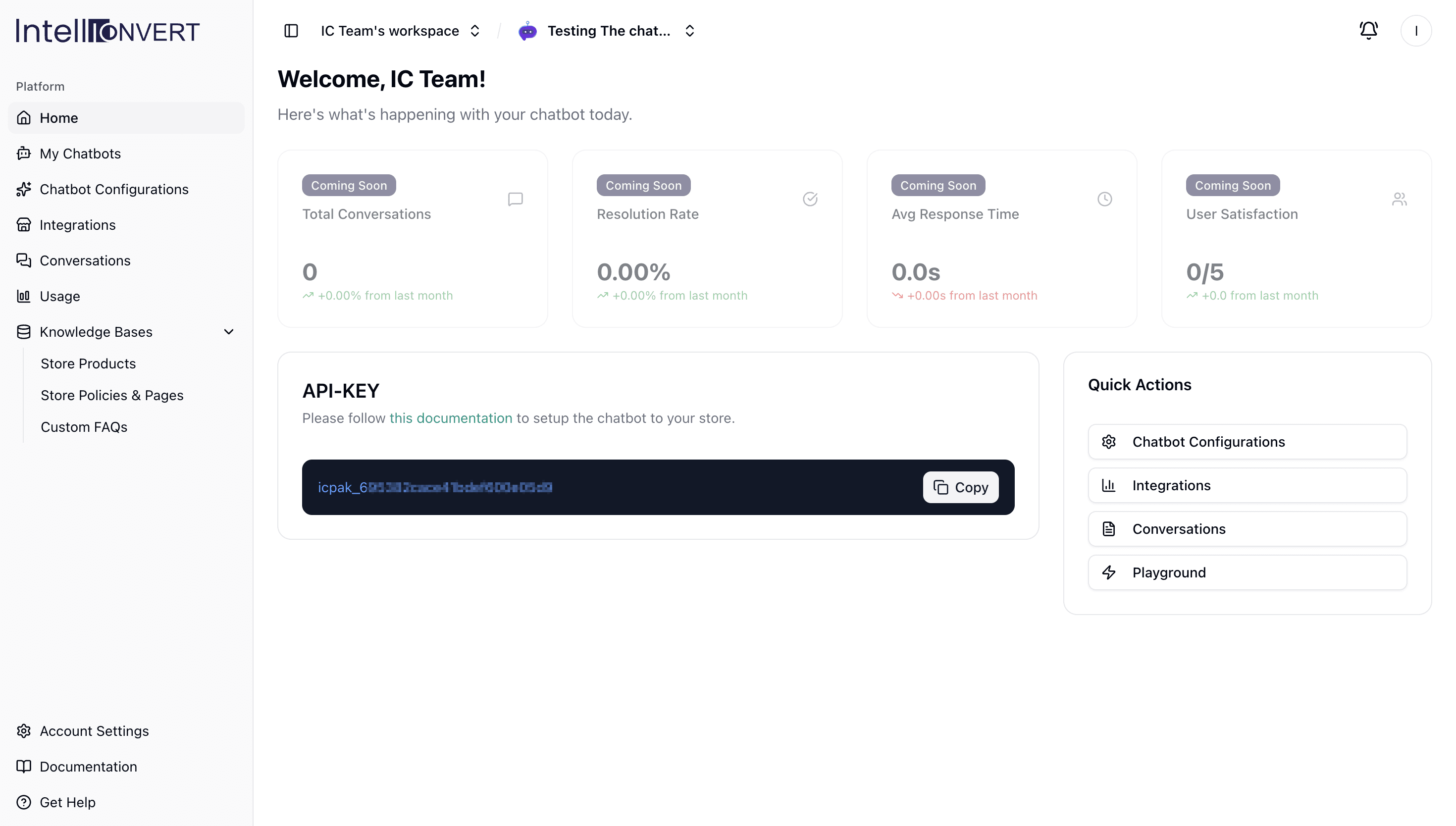
- Enable and put the API Key
Get the API Key from IntelliConvert Dashboard

- Save it
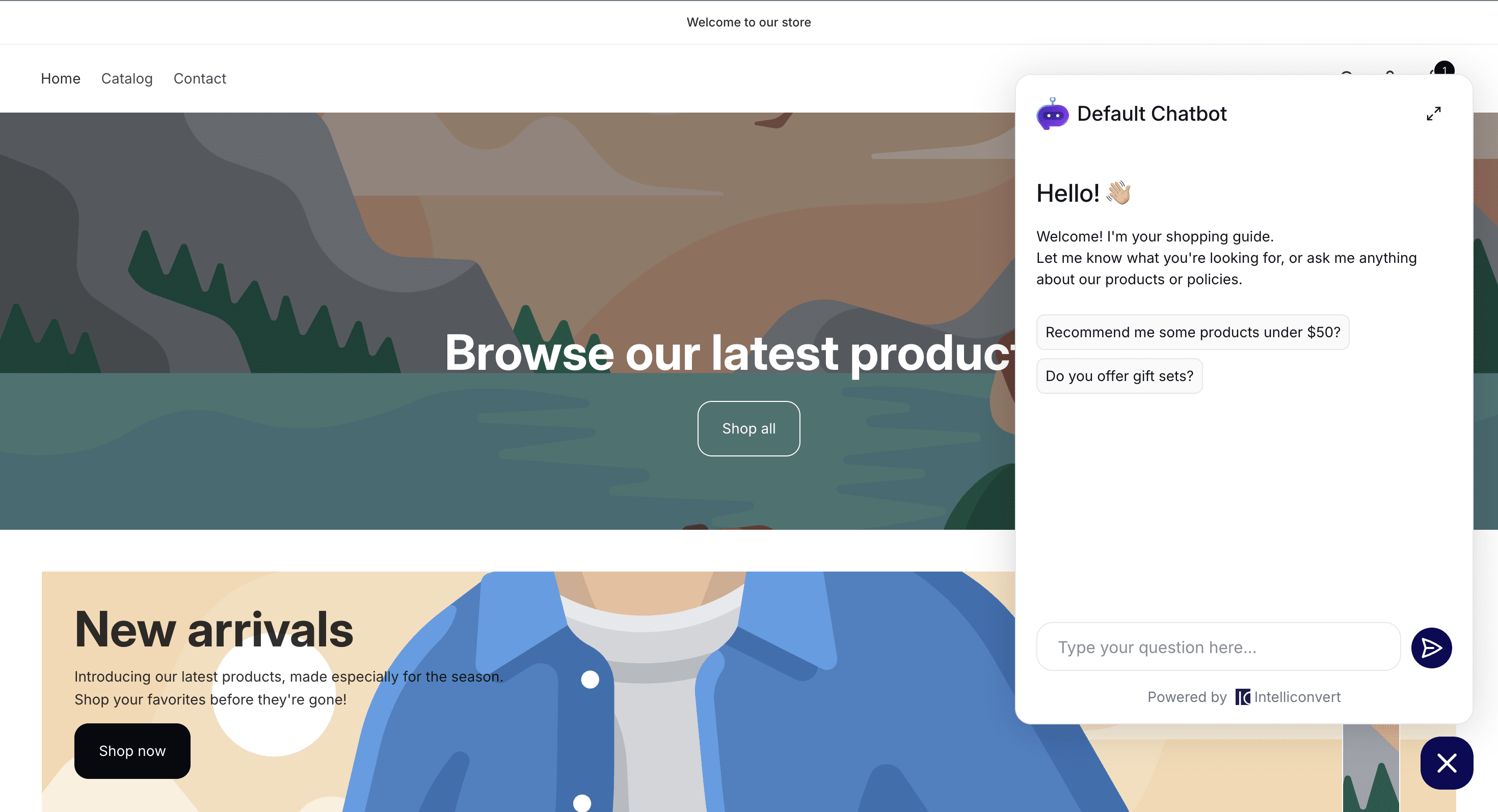
🎉 Setup Complete!
Your IntelliConvert chatbot is now active and ready to assist customers.